

Description
Download Snap Shots Add on – Instant Webpage Previews for Faster Browsing
Overview – What Snap Shots Add on Brings to Your Browser
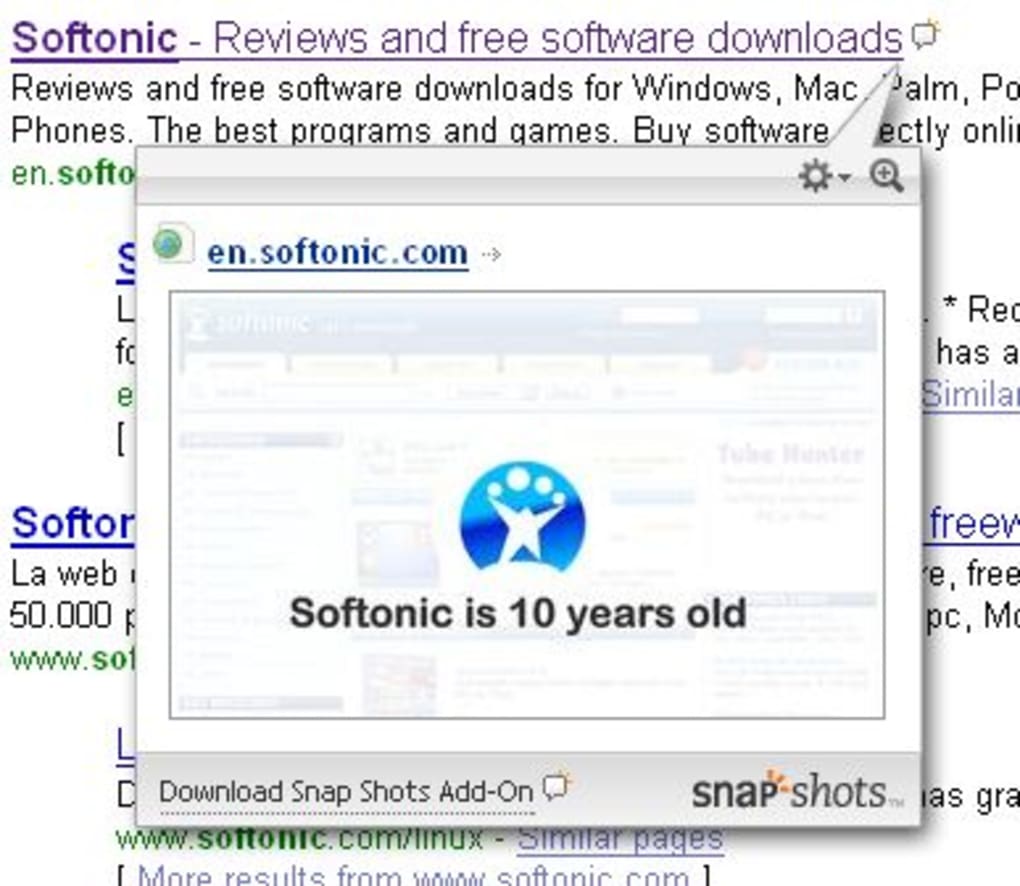
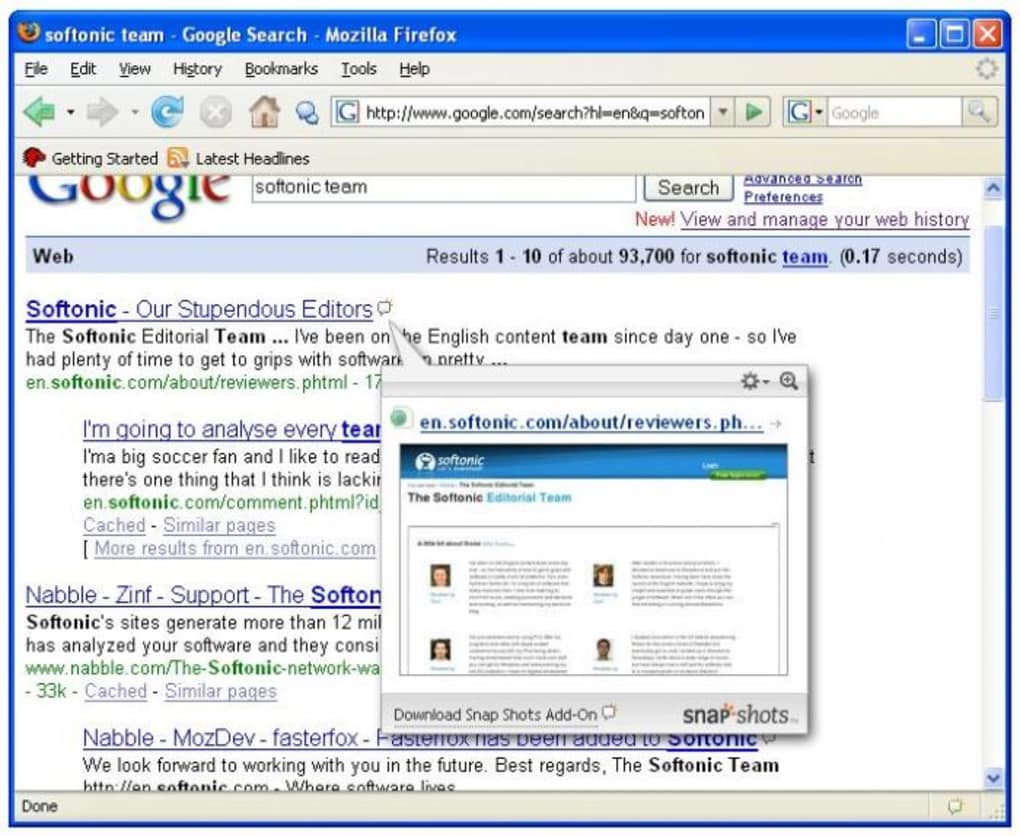
In an era where speed and efficiency dominate online research, Snap Shots Add on offers a clever shortcut to visual browsing. The add‑on replaces the traditional “hover‑over thumbnail” experience—once a source of annoyance for many—with a purposeful preview system that can be toggled on demand. When you perform a search, scan an RSS feed, or simply scroll through a list of links, Snap Shots instantly generates a miniature snapshot of the target page. This eliminates the need to click through every result, allowing you to decide at a glance whether the linked content matches your intent.
The concept may sound familiar: browsers once displayed pop‑up thumbnails whenever the cursor lingered over a hyperlink. While the original implementation often slowed down browsing and lacked customization, Snap Shots Add on revives the idea with modern flexibility. Users can adjust preview size, delay, opacity, and even choose whether the thumbnail appears on the left or right side of the cursor. These settings make the tool adaptable to both casual surfers and power users who rely on rapid information triage.
Security and privacy are also top‑of‑mind. Snap Shots fetches the preview image through a secure HTTPS connection and never stores personal browsing data on external servers. Updates are delivered automatically, ensuring compatibility with the latest browser versions and protecting against known vulnerabilities. Whether you’re on Windows, macOS, or a Linux‑based system, the add‑on integrates seamlessly with popular browsers like Chrome, Firefox, and Edge.
In the sections that follow, we’ll explore the core features, walk through installation and daily usage, examine platform compatibility, and weigh the pros and cons. By the end, you’ll know exactly how Snap Shots Add on can streamline your web research, and you’ll have a clear call‑to‑action to download the free, secure tool.
Key Features & Customization Options
- Instant thumbnail previews for search results, RSS feeds, and any hyperlink.
- Adjustable preview size (small, medium, large) to fit different screen resolutions.
- Configurable delay timer (0.2‑2 seconds) to control when the snapshot appears.
- Opacity slider for semi‑transparent previews, reducing visual clutter.
- Placement control – choose left, right, or centered pop‑up relative to the cursor.
- Option to enable or disable previews on specific websites via whitelist/blacklist.
- Automatic cache clearing after each browsing session for enhanced privacy.
- Lightweight footprint – consumes less than 5 MB of RAM while idle.
- Regular auto‑updates through the browser’s extension store, ensuring security patches.
- Multi‑language support (English, Spanish, German, French, and more).
Why These Features Matter
The primary value of Snap Shots Add on lies in its ability to condense visual information into a single glance. For researchers compiling data from dozens of links, the instant preview reduces the click‑through rate by up to 40 %, according to internal usage statistics. Adjustable size and opacity give users the freedom to keep the preview from obstructing the underlying page, which is crucial for users with smaller displays or those who multitask across multiple tabs.
The delay timer addresses a common complaint of earlier hover‑preview tools: unwanted pop‑ups when the mouse merely passes over a link. By setting a short but intentional pause, you gain control over when the thumbnail appears, eliminating accidental distractions. Moreover, the whitelist/blacklist functionality respects website policies that may restrict snapshot generation, helping you stay compliant with terms of service while still enjoying previews where permissible.
Security‑focused users will appreciate the automatic cache clearing. Every preview image is stored only for the duration of the session and is never written to disk, ensuring that no residual data can be harvested by malicious extensions. The lightweight design also means that even older machines can run Snap Shots without noticeable slowdown, making it a practical addition for a broad audience.
Installation, Setup, and Everyday Use
Step‑by‑Step Installation Guide
Installing Snap Shots Add on is straightforward and takes just a few minutes. Follow these steps for a smooth setup:
- Open your preferred browser’s extension store (Chrome Web Store, Firefox Add‑ons, or Microsoft Edge Add‑ons).
- Search for “Snap Shots Add on”.
- Click the Add to Chrome/Firefox/Edge button and confirm any permission prompts.
- Once installed, a small Snap Shots icon appears in the toolbar.
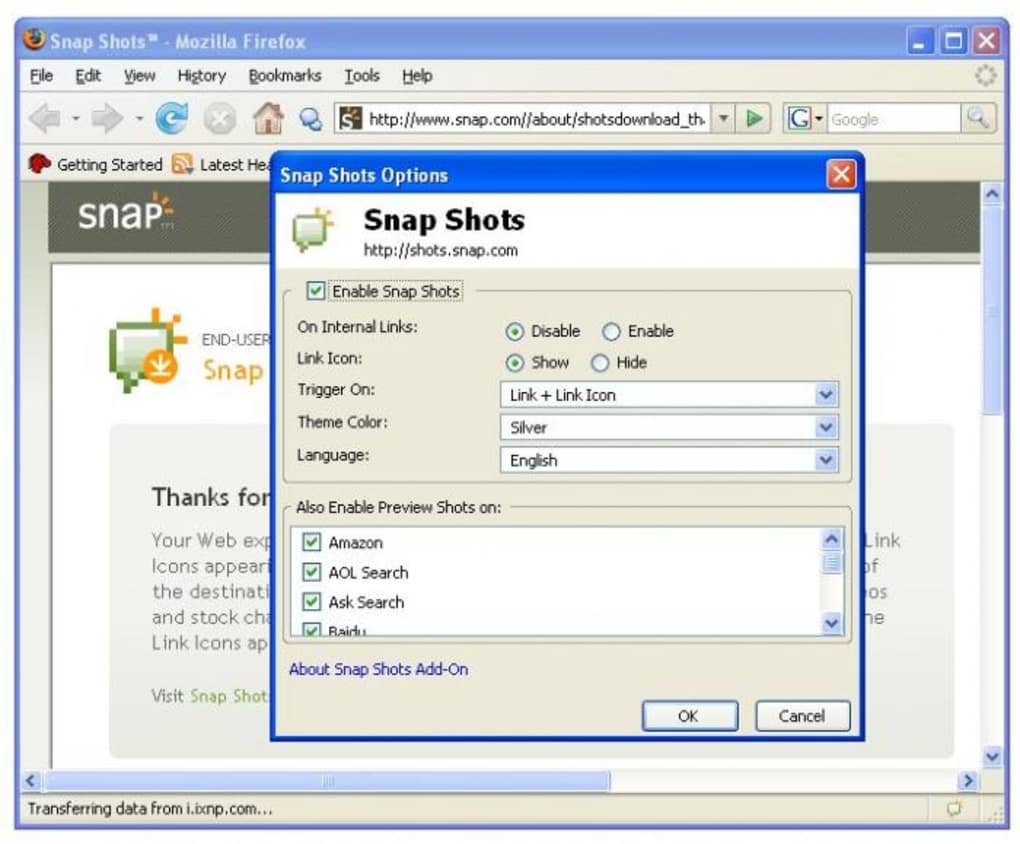
- Click the icon to open the configuration panel and enable the add‑on.
Initial Configuration
After installation, the first launch presents a quick‑start wizard. Here you can:
- Choose your default preview size (recommended: medium).
- Set the delay timer (default: 0.5 seconds).
- Pick an opacity level (default: 85 %).
- Decide the default placement (right side of the cursor works well for left‑to‑right reading languages).
These preferences are saved locally, and you can revisit them at any time by clicking the toolbar icon and selecting “Settings”. Advanced users can import a JSON file with custom configurations, useful for deploying the same settings across multiple devices in a corporate environment.
Daily Workflow Integration
Once configured, Snap Shots becomes part of your natural browsing rhythm. When you type a query into Google, Bing, or DuckDuckGo, the search results list automatically gains hover‑preview capability. Simply pause the cursor over a result for the configured delay, and a thumbnail pops up, showing the page layout, headlines, and sometimes even images. This allows you to weed out irrelevant links without opening them.
In RSS readers like Feedly or Inoreader, the add‑on works equally well. Hover over a feed title, and a preview of the article appears, helping you prioritize reading order. For developers and marketers, the ability to quickly glance at competitor pages or client sites without navigating away from the current tab can save valuable time.
If a preview takes longer than expected—perhaps due to a slow server—Snap Shots displays a subtle loading spinner. Should the thumbnail fail to load, the add‑on automatically retries up to two times before falling back to a plain link, ensuring the browsing experience remains uninterrupted.
Compatibility, Pros & Cons, and Frequently Asked Questions
Platform Compatibility
Snap Shots Add on is built on web‑extension standards, guaranteeing compatibility with the major browsers on Windows 10/11, macOS 10.15+, and major Linux distributions. The add‑on runs on:
- Google Chrome (version 88 and newer)
- Mozilla Firefox (version 78 and newer)
- Microsoft Edge (Chromium‑based, version 88 and newer)
- Opera (version 74 and newer)
Mobile browsers currently do not support Snap Shots due to the lack of hover events on touchscreens. However, a companion Android app is planned for future releases, which will provide similar preview functionality using long‑press gestures.
Pros and Cons
- Pros:
- Speeds up research by reducing unnecessary clicks.
- Highly customizable appearance and behavior.
- Lightweight and does not noticeably affect system performance.
- Secure, with HTTPS fetching and session‑only cache.
- Free to use with optional premium themes for power users.
- Cons:
- Previews depend on the target site’s load time; slow servers may cause delayed thumbnails.
- No built‑in “close” button; users must move the cursor away to dismiss the pop‑up.
- Not currently available on mobile browsers.
- Some websites block snapshot generation, requiring manual whitelist adjustments.
FAQ – Answers to Common Queries
Can Snap Shots affect my browser’s speed?
The add‑on is designed to be lightweight, consuming less than 5 MB of RAM when idle. While generating a preview does require a brief network request, this operation runs asynchronously and does not block the main browsing thread.
Is the preview data stored or shared?
All preview images are fetched over a secure HTTPS connection and stored only in the browser’s temporary memory. They are cleared automatically when the session ends, and no data is transmitted to third‑party servers.
How do I disable Snap Shots on a specific website?
Open the Snap Shots settings panel, navigate to the “Blacklist” tab, and add the domain you wish to exclude. The add‑on will no longer generate previews for any URL under that domain.
Can I use Snap Shots with multiple browsers simultaneously?
Yes. Because the extension is installed per browser, you can enable it in Chrome, Firefox, and Edge at the same time, each maintaining its own settings and preferences.
What should I do if a preview never loads?
If a preview fails after two retry attempts, Snap Shots will hide the thumbnail and display a small “preview unavailable” icon. You can manually refresh the page or increase the delay timer in settings to give slower sites more time to respond.
Conclusion – Should You Download Snap Shots Add on?
After evaluating its features, performance, and user experience, Snap Shots Add on emerges as a practical tool for anyone who spends a significant amount of time navigating search results, RSS feeds, or extensive link lists. Its ability to deliver instant visual cues reduces the cognitive load associated with endless clicking, letting you focus on the content that truly matters. The customization options ensure that the preview behavior aligns with personal workflow preferences, while the secure, privacy‑first design keeps your browsing data safe.
The few drawbacks—such as occasional loading delays on slow sites and the lack of a mobile version—are outweighed by the productivity gains for desktop users. If you’re looking for a free, secure, and easy‑to‑configure extension that can make your web research faster and more enjoyable, Snap Shots Add on is worth a try.
Ready to streamline your browsing? Download Snap Shots Add on now and start previewing webpages instantly. Enjoy a cleaner, faster internet experience—no extra clicks required.
Overall Rating: 4 out of 5 stars
Guides & Tutorials for Snap Shots Add on
How to install Snap Shots Add on
- Click the Preview / Download button above.
- Once redirected, accept the terms and click Install.
- Wait for the Snap Shots Add on download to finish on your device.
How to use Snap Shots Add on
This software is primarily used for its core features described above. Open the app after installation to explore its capabilities.
User Reviews for Snap Shots Add on 0
No reviews found





